Most iPhone users are making tap-to-pay payments without really thinking about it. Whether you are paying for coffee at a restaurant or buying a metro ticket, knowing how to enable NFC payment on iPhone makes your life a breeze.
Although Apple started supporting NFC-based tap-to-pay as early as iPhone 6, with the newer models, it has become more seamless and default. It is becoming more popular with both consumers and businesses. Today, Near Field Communication represents the cornerstone of modern transaction technology. Near Field Communication enables devices in close proximity to communicate without any direct physical connection. For the average smartphone user, this means your phone can act as a wallet, transit card, or even a secure authorization key, making daily errands much faster and more secure.
Today over 11,000 banks worldwide support Apple Pay, and globally, $7.6 trillion in transactions are conducted through Apple Pay every year. Which means
More than 818 million users across the world use Apple Pay for making payments.
With nearly 94% of US retail establishments accepting Apple Pay, you can use NFC on your iPhone in most places you frequent, like grocery stores or restaurants.
When we look at how consumers are taking to contactless payments, we can see that nearly 90% of US consumers use contactless payments like NFC wallets on their phones and NFC cards.
Market research into spending shows that contactless spending per user is expected to reach $7,827 in 2026.
What Is NFC on an iPhone?
NFC (Near Field Communication) on an iPhone is the contactless technology that enables tap-to-pay with Apple Pay. It is like a digital handshake between your iPhone and a payment terminal. By bridging the physical and digital worlds, NFC allows users to initiate transactions securely by simply bringing their devices near a compatible receiver, eliminating the need to swipe magnetic strips or insert chips into traditional terminals.
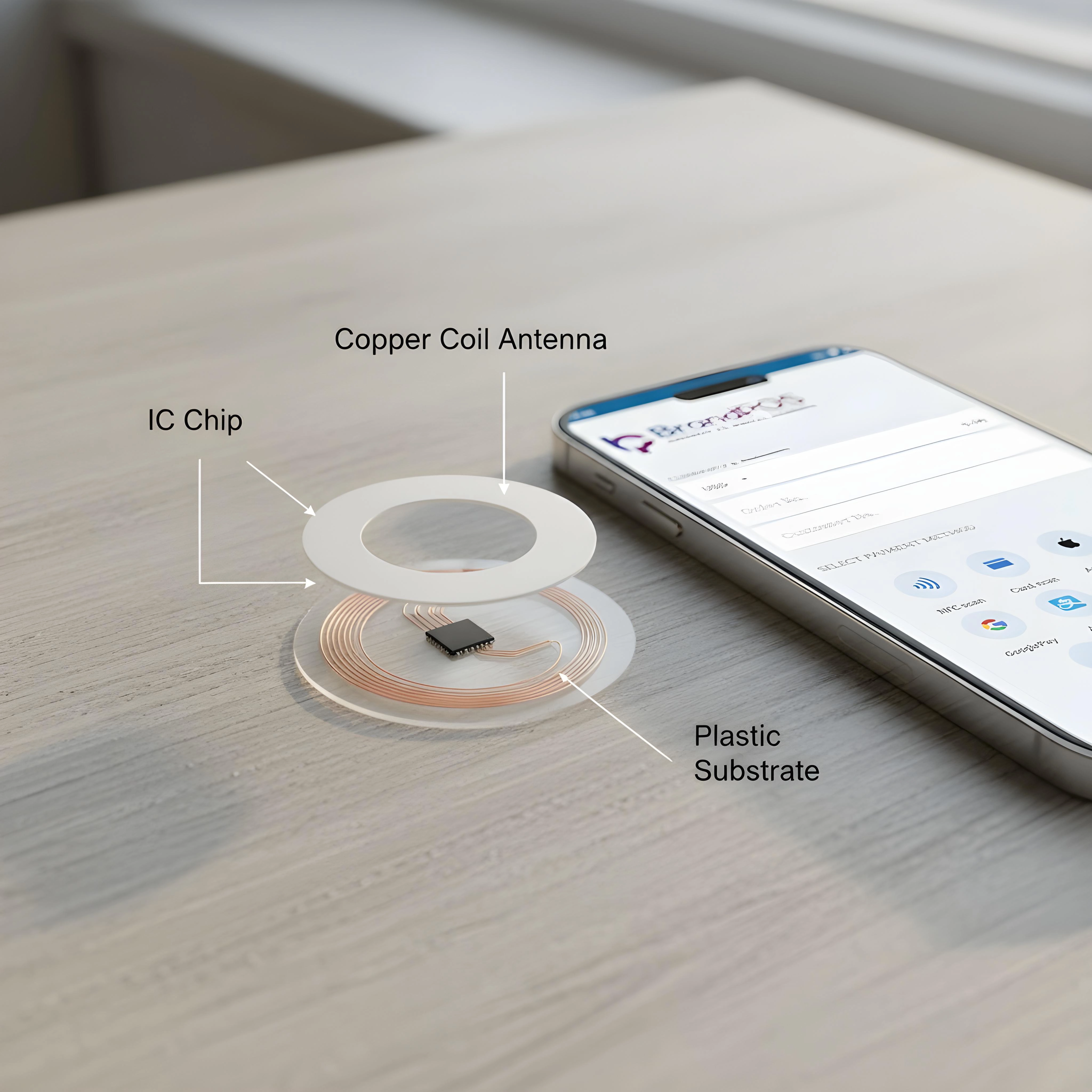
NFC is a short-range wireless technology. Apple has a dedicated NFC chip in the iPhone's hardware, and its antenna is located on the top of your iPhone. With built-in NFC technology, your iPhone can exchange data with another compatible device (e.g., the payment terminal). NFC works only when both devices are within 4 cm of each other. This extremely short distance is a deliberate design choice that prevents accidental payments or remote interception of transaction data by malicious third parties.
When Apple first introduced NFC on iPhone 6, its function was limited to making payments with Apple Pay. With new models and over time, Apple has been expanding the scope of NFC on an iPhone. Today, the capabilities of NFC are much broader and more integrated into the iOS ecosystem. Let us look at the main use cases of this technology on modern iPhones:
- Apple Pay - NFC supports contactless payments through your Apple Pay app, allowing you to link credit, debit, and transit cards directly to your phone.
- NFC tag reading - supports reading product info or using automated shortcuts without using any app on your iPhone, triggering actions through simple tags placed in your home or office.
- Device pairing - Connecting your Apple accessories like AirTags and MagSafe, which allows the iPhone to recognize custom cases, chargers, and trackable items instantly.
- Third-party wallets - At first, NFC payments were supported only on Apple Pay. From 2024, Apple is allowing third-party apps in the European region to do NFC payments using the built-in NFC chip, opening up the hardware ecosystem to competition.
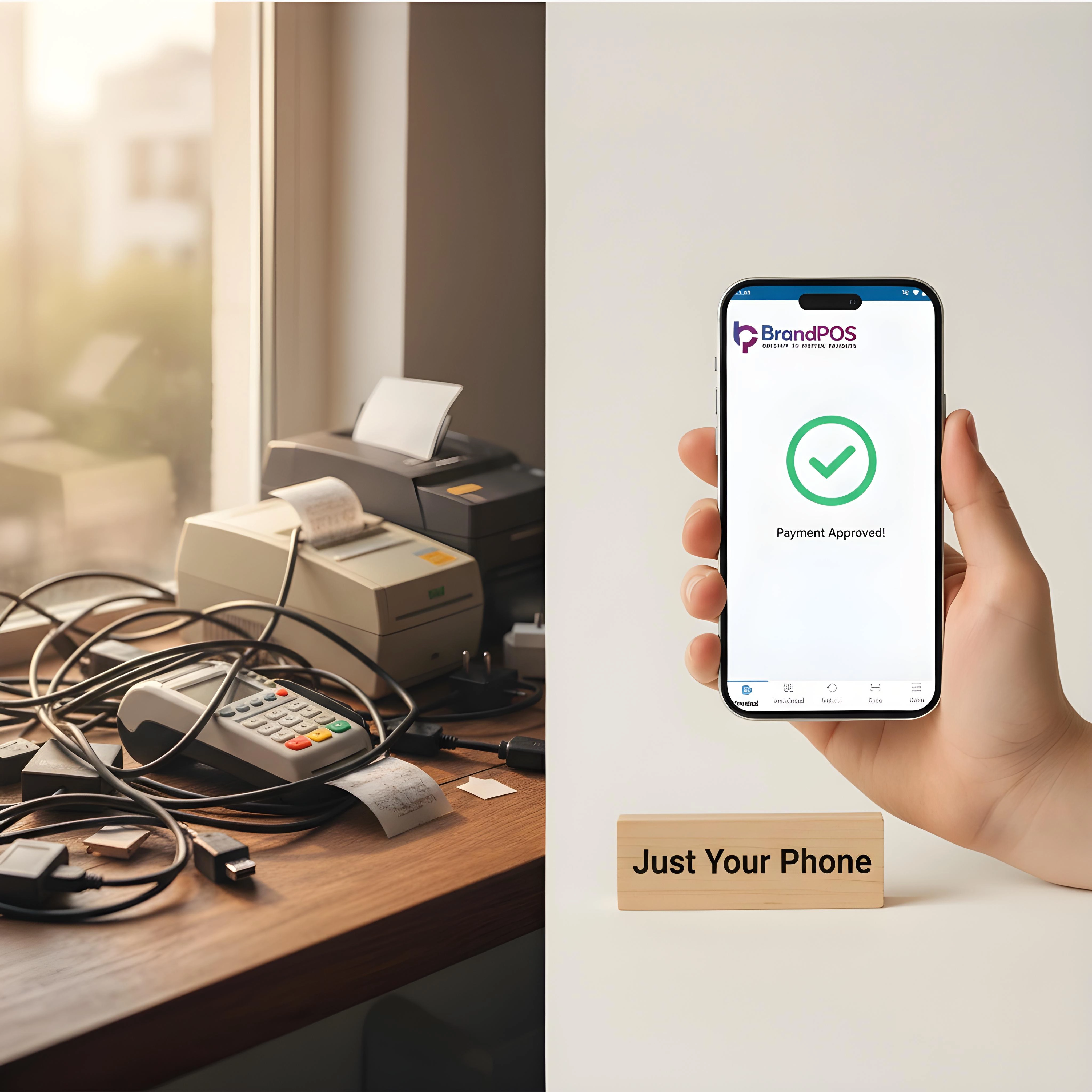
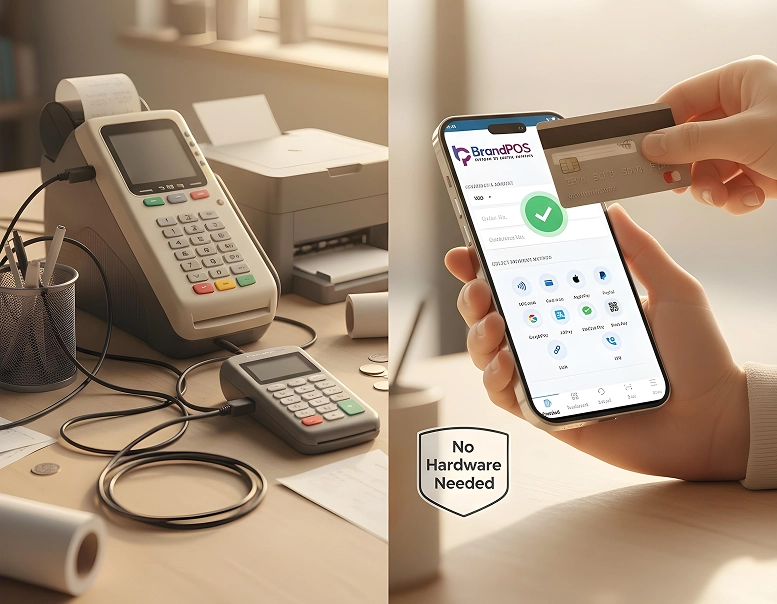
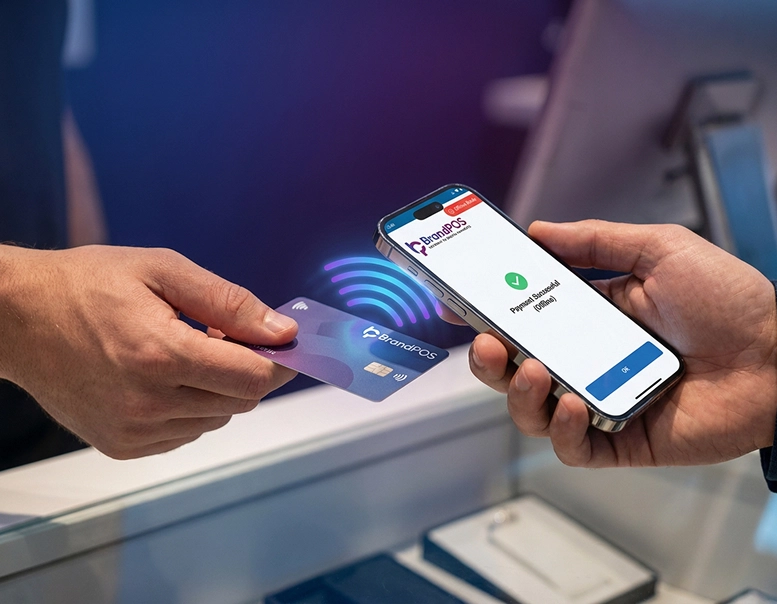
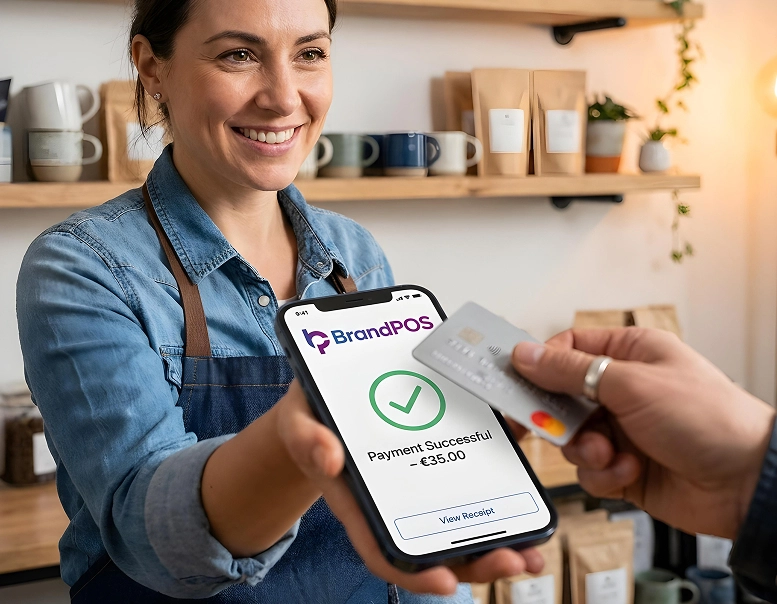
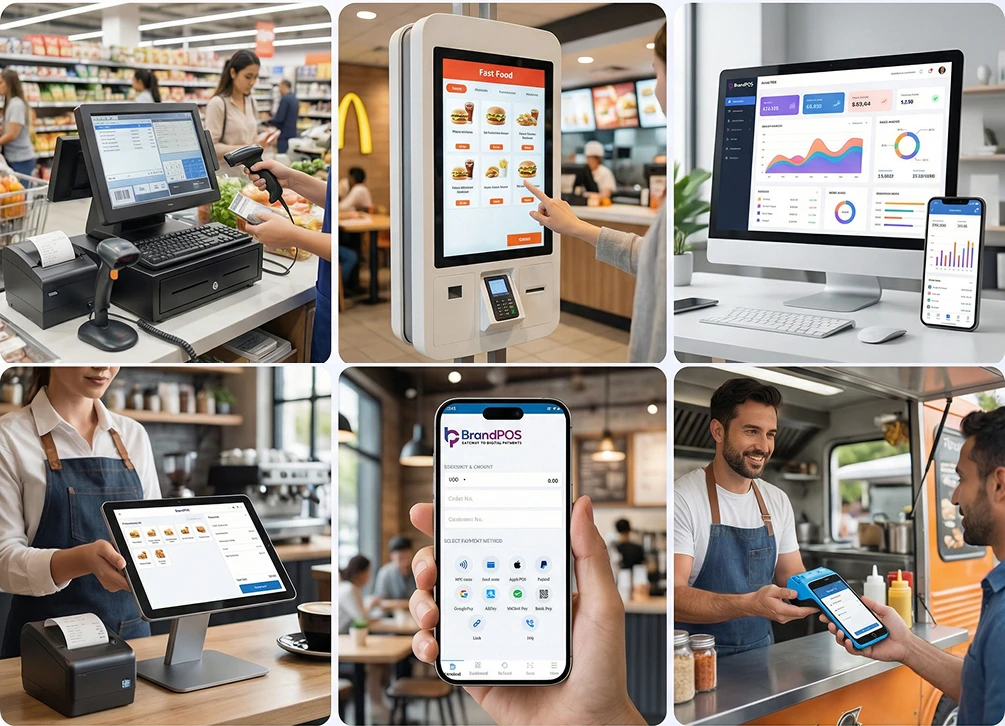
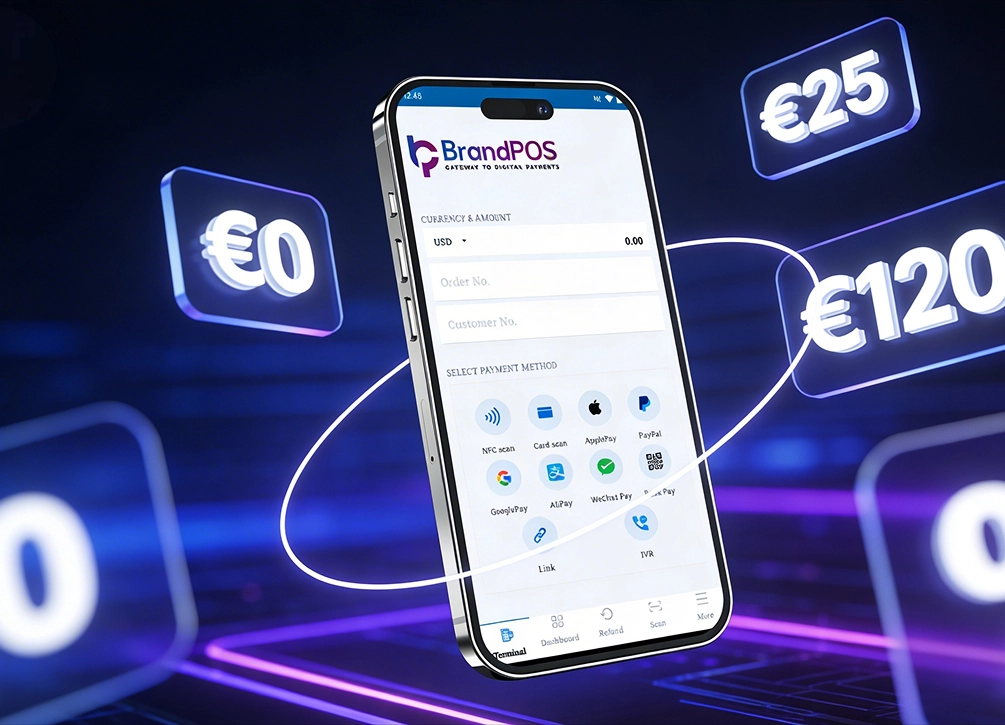
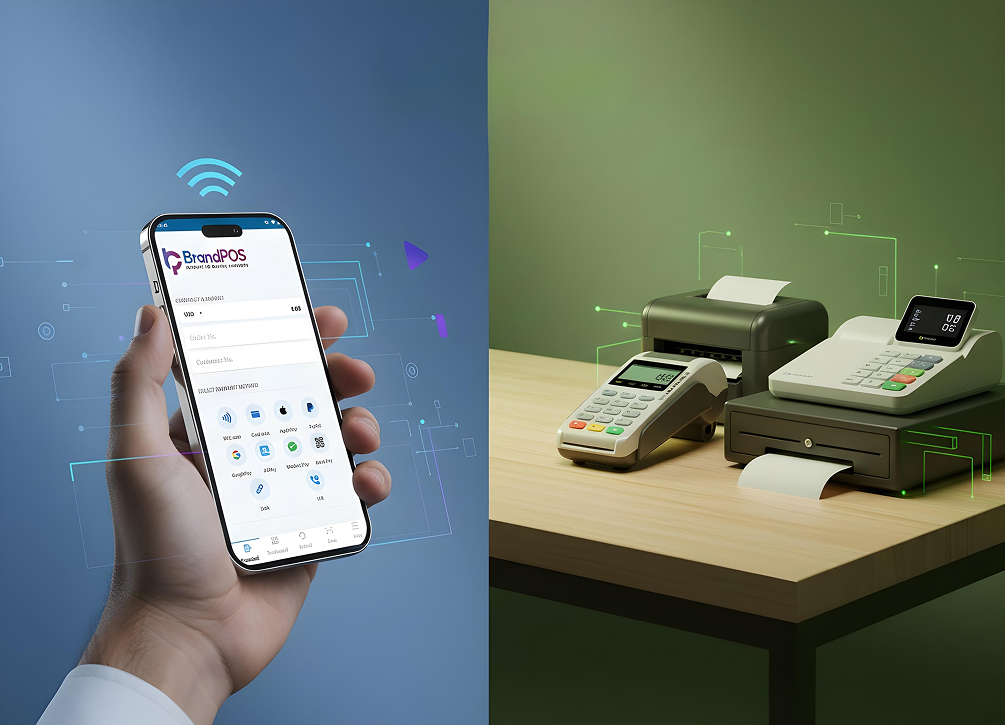
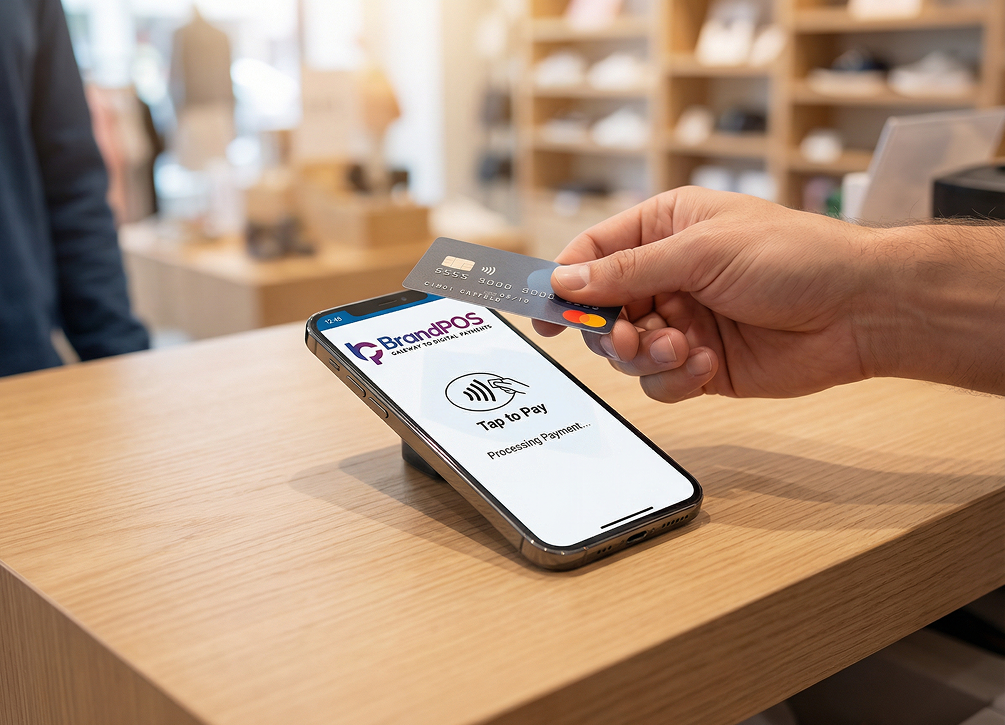
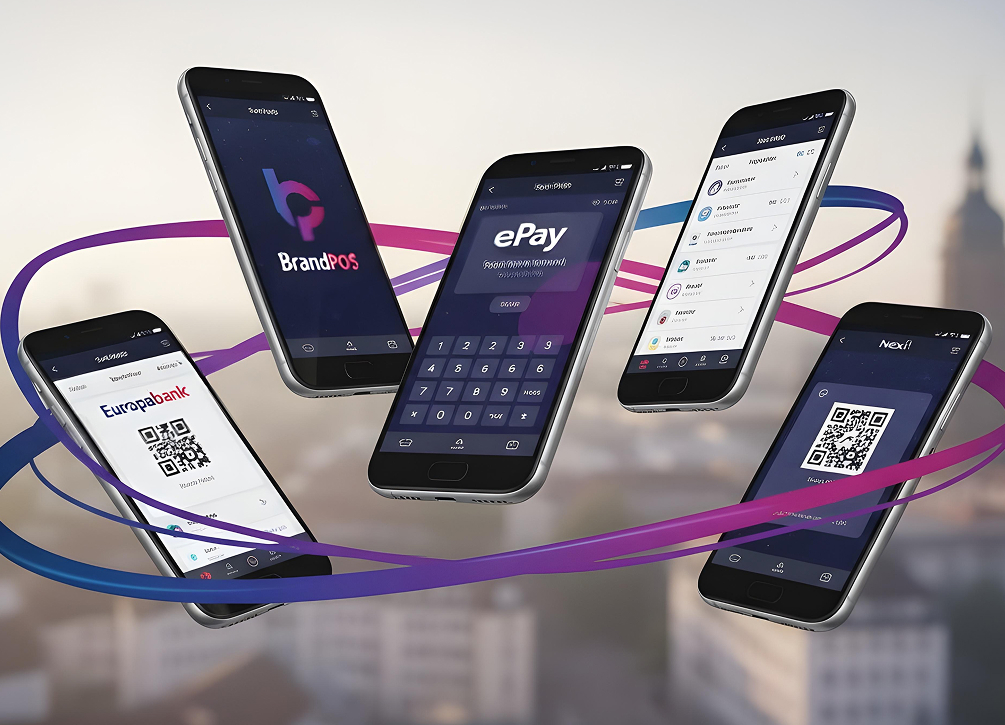
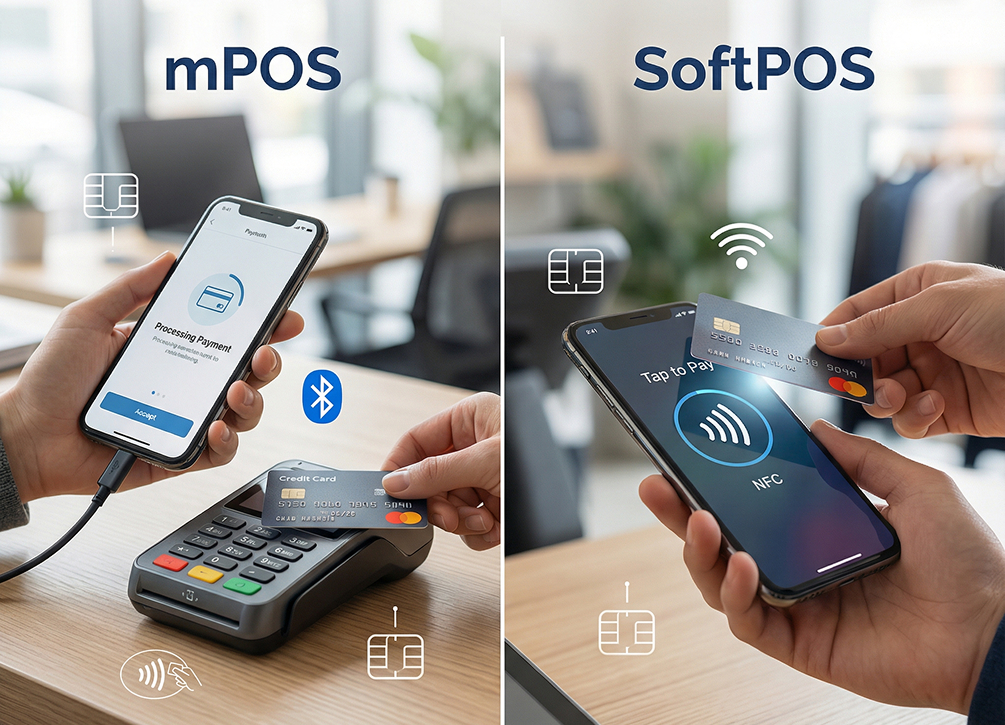
NFC technology is also used in SoftPOS solutions like BrandPOS where you can turn your phone into a payment terminal for your business. (BrandPOS already supports NFC payments on smartphones and may support Tap to Pay on iPhone in the future.) This development is shifting the dynamic for retail checkout, as merchant devices can now securely read consumer credit card data using the exact same standard NFC protocols.
Do You Need to Turn On NFC on iPhone?
Android phones have a dedicated NFC switch in the settings. So you have to go into settings and activate nfc on iphone manually. This manual control gives Android users the ability to disable the transmitter when not in use, which some prefer for battery or privacy concerns.
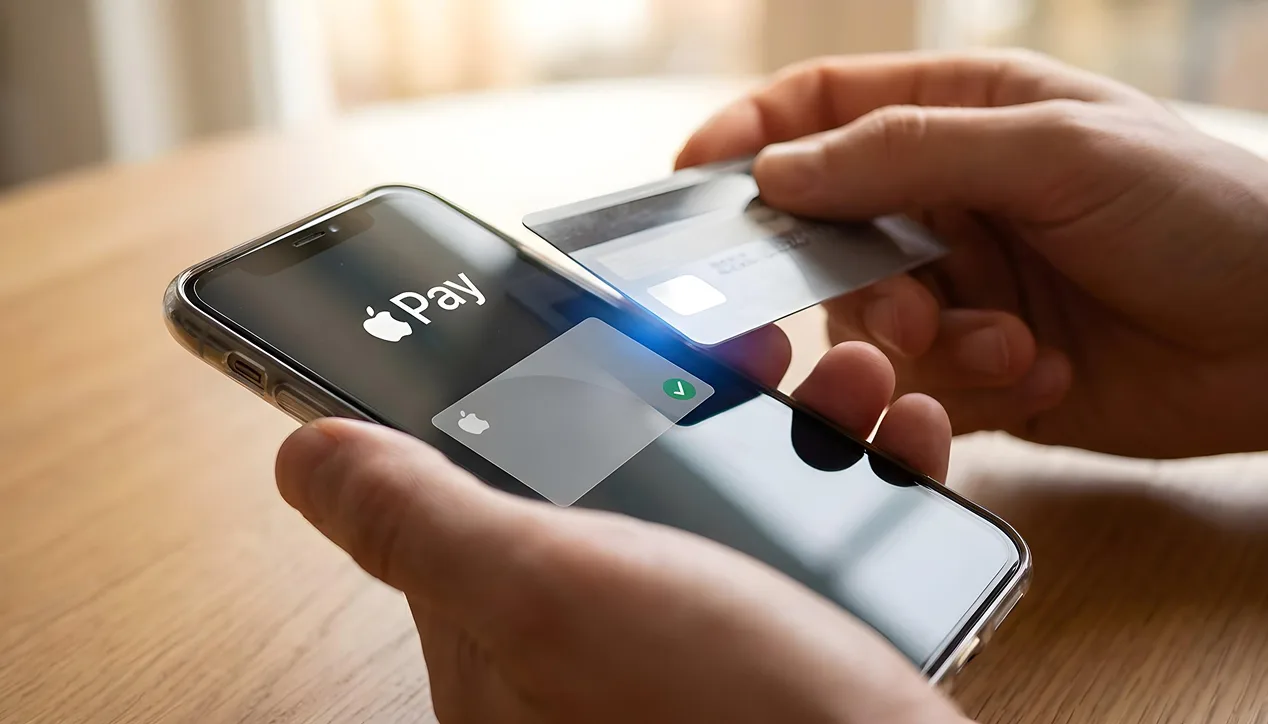
Whereas on iPhone (iPhone XS, XR, iPhone 11, and newer models), the nfc settings in iphone are automatically turned on in the background from the very beginning. So, in the case of an iPhone, you don’t have to do anything extra to turn on NFC. The system manages the power state and security parameters of the NFC transceiver autonomously, activating it only when a relevant transaction is initiated.
So, how to enable nfc payment on iphone settings? You do not need to navigate through complex menus or toggle developer features to get started. Apple designed the setup to be integrated into the onboarding flow of your device.
You only have to set up Apple Pay and add your bank card details. There is no additional manual toggle or switch. Once your card is added, the NFC chip becomes fully functional for all compatible POS payment networks.
How to Enable NFC Payments on iPhone – Step-by-Step
How to enable nfc payment on iphone? The process is super simple because you don’t have to do any specific changes in the settings. You only have to set up Apple Pay in your iPhone’s wallet app. This eliminates the confusion often associated with configuring network protocols on mobile devices.
Here are the simple steps that you can follow to know how to enable nfc payment on iphone:
Step 1: Confirm Compatibility
Apple started enabling NFC payments on iPhones from iPhone 6 onwards. From iPhone 12 onwards, Apple enables NFC for Apple Pay by default on supported iPhones. There is no separate NFC toggle that users need to use to activate nfc on iphone. You do not need to manually configure the nfc settings in iphone to start using Apple Pay. You just have to check if you have the latest iOS version on your phone, as system updates ensure the security and stability of the Wallet application.
Step 2: Open the Apple Wallet app
Find the ‘Wallet’ app on your iPhone’s home screen. You don’t have to download it because it comes pre-installed on iPhones. Look for an app that looks like a card holder. If you have deleted the app previously, you can easily reinstall it from the official App Store.
Step 3: Add Your Debit or Credit Card
In the Apple Wallet app, tap the '+' button in the right-side corner of the screen. Select the debit or credit card option and follow the instructions to add your card details. Apple lets you add cards to your Wallet in two ways. Either you can scan the card with your camera and let your iPhone add the card details. If you don't want to scan with the camera, you can enter the card details by typing in the number, expiry date, and CVV manually.
Step 4: Verify the Card
After you have added the card details, Apple will contact your card issuer to verify the card. This verification may be completed via a text message, where you will receive an OTP; a phone call; email; or the bank’s app. This verification step is a critical security measure to prevent unauthorized card additions.
Step 5: Test Your NFC Payment
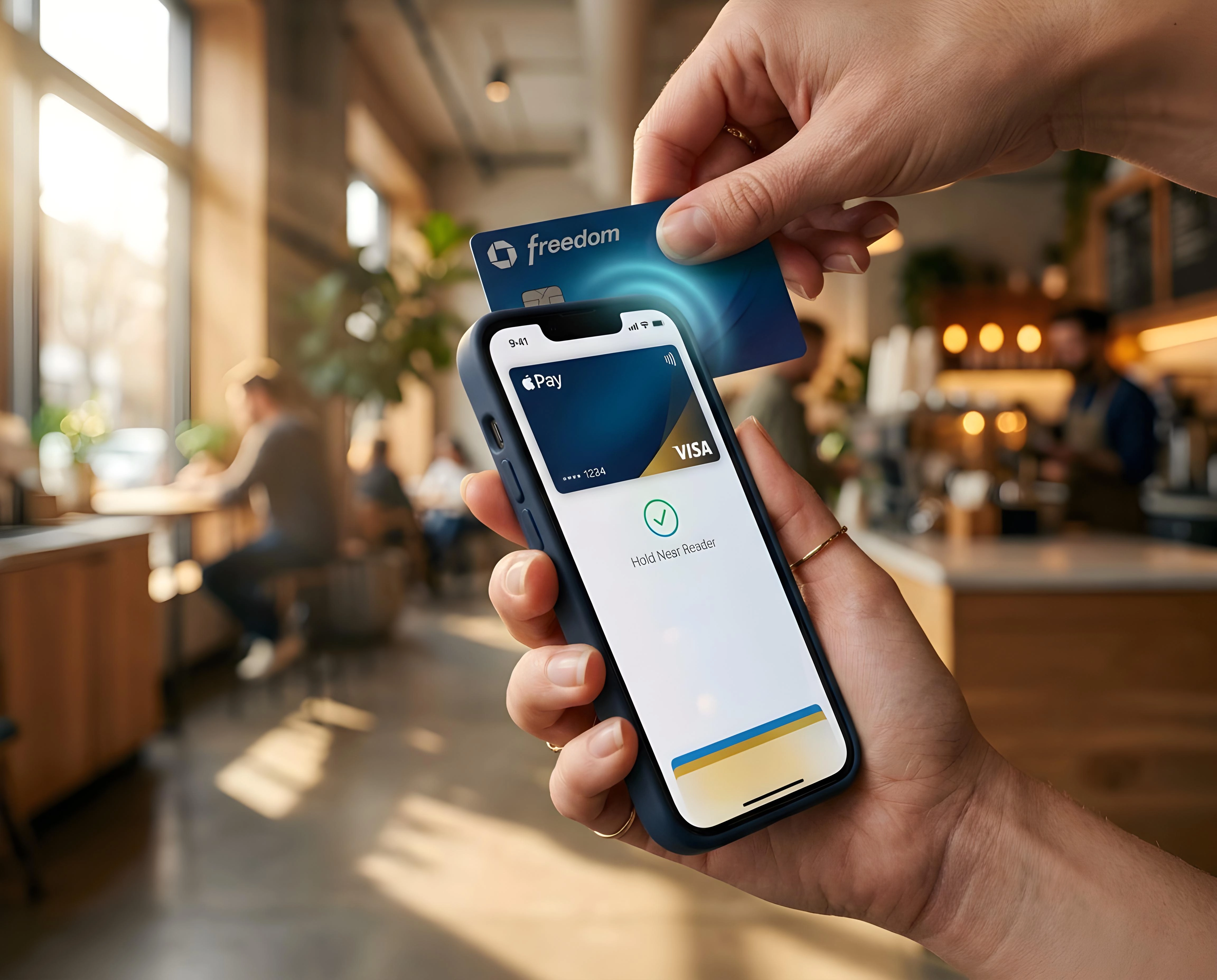
Try a first payment at a small store to ensure that your NFC payment on iPhone is working as it should. At the contactless payment terminal, double-click the side button for iPhones with Face ID or double-tap the home button if you have an iPhone with Touch ID. Authenticate with Face ID, Touch ID, or by entering your passcode. Now hold the top of your iPhone (because that’s where the NFC antenna is located) near the payment terminal. You'll see a checkmark and 'Done' within seconds when the payment is completed.
How to Use NFC Payment on iPhone (Tap-to-Pay)
Once you have understood how to enable nfc payment on iphone, making tap-to-pay payments becomes really easy. It is designed to be faster than opening a traditional wallet and pulling out a physical plastic card.
First check for the contactless payment symbol that supports tap-to-pay transactions at the terminal. Next, to make an NFC payment on your iPhone, hold your phone near the payment terminal. You will get a checkmark and a message within a second. It will confirm that you have made the payment. Let us look at the detailed steps based on your device model:
- On iPhones with Face ID: Double-click the side button on the right side of the device - it will automatically open your default card in Apple Wallet. Glance at your iPhone; it will complete the authentication with Face ID. Or, you can enter the passcode manually to authenticate. Hold the top of your iPhone near the contactless reader. Wait for the ‘checkmark’ and the ‘done’ message to show.
- On iPhone SE, iPhone 8, and Earlier: Double click the Home button while the device is locked. When you get the prompt on the screen, rest your finger on the Touch ID sensor without pressing it. Hold the top of your iPhone near the terminal and hold it steady until the ‘done’ confirmation appears.
Requirements to Use NFC Payments on iPhone
Before you can use NFC on your iPhone, you have to check if some basic things are in place. These hardware and software prerequisites guarantee that the transmission is secure and matches modern banking compliance standards. Unlike other smartphones, you won't find a standalone menu for nfc settings in iphone. Instead, the features are built into the iOS environment. Here are the core requirements:
- Your iPhone: NFC payments through Apple Pay are supported on iPhone 6 and later models. Newer models feature upgraded antennas with better range.
- An updated version of iOS: For NFC payments, your iPhone should at least have iOS 12.3 or a later version. But, to be honest, you should update to the latest iOS to ensure that you can use all the Apple Pay features.
- Passcode: Apple’s security requires you to set a passcode for your iPhone. If passcode lock is disabled, Apple Wallet will remove your cards for security.
- Supported bank card: A debit or credit card from a bank that supports Apple Pay. Most major global banks are fully compatible.
- Regional support: Apple Pay must be available in your country. Some regions have restrictions on mobile payments.
- Internet Connection: You will need an internet or WiFi connection at the time of adding your bank card to the Apple Wallet, though it's not needed for standard offline payments.
Where Can You Use NFC Payments on iPhone?
You can use NFC for making payments on iPhone wherever the contactless payment option is available. This convenience spans various retail segments, restaurants, public transit networks, and even automated terminals. Here is a breakdown of where you can expect to use it daily:
- Retail Stores: You can pay with NFC on iPhone in most of the major retail stores across the US and Europe. This includes grocery stores (Whole Foods or Trader Joe's), department stores like Target and Macy’s, pharmacies like CVS and Walgreens, and global stores like McDonald's, Starbucks, and Nike.
- Restaurants and Cafes: Payment through Apple Pay is accepted in restaurants, cafes, and fast food chains. So, if you are planning to eat out, NFC payments with Apple Pay are convenient and save you from handing your physical card to staff.
- Vending Machines: You can buy stuff from modern vending machines in locations like airports, train stations, or offices with Apple Pay. Just look for the contactless reader on the machine.
- Public Transport: Apple Pay works in 12 major US cities like New York (MTA), Chicago (CTA), Los Angeles (Metro), Boston (MBTA), San Francisco (Bay Area), and so on. Internationally, you can use Apple Pay for Transport for London (TfL) and Tokyo's transit network, Hong Kong's MTR, Toronto's TTC, and many more.
Benefits of Using NFC Payments on iPhone
Why are more and more people learning about NFC payments on iPhone? The reason lies in the significant advantages contactless payments offer over traditional physical cash and plastic cards. Below, we discuss these benefits in detail:
- Convenient and Fast: If you have NFC on your iPhone, you can instantly pay for your bills with a tap. It feels faster and easier than swiping a card and entering a PIN. And NFC also saves you the hassles of cash handling or carrying additional cards. On the other side, businesses also use SoftPOS solutions like BrandPOS for faster and seamless contactless payments on supported smartphones.
- Widely Accepted: Roughly 95% of U.S. retailers are already accepting payments through Apple Pay. Apple Pay works in more than 95 countries across the world. So, you can use it even when you are traveling abroad without having to exchange local currency.
- Secure: The security architecture of NFC, like tokenization and encryption, protects you from fraud. Even if someone steals your phone, they can not use Apple Pay without your Face ID, Touch ID, or passcode. This is significantly more secure than a standard credit card.
- Apple’s Unique Security Model: The iPhone has a dedicated hardware chip called the Secure Element within the phone. This Secure Element is isolated from the rest of the iPhone’s operating system. When you add a card to Apple Pay, it is assigned a Device Account Number (DAN), and this DAN is stored in Apple’s Secure Element. So, when you use NFC on iPhone, your card details are not shared with the merchants.
- Privacy: Apple does not track your purchases or sell your payment data to third parties. Your transactions remain personal between you, your bank, and the merchant.
- Hygiene: NFC payment through Apple Pay is contactless. So, it is a safe option in outlets where people are handling food or in medical settings, reducing the spread of germs on physical surfaces.